Managing Your Site Files and Storage
Your domain account includes storage space for your website files, images, documents, backups, and installed applications such as WordPress. Over time, this space can fill up, especially if you upload large images, video files, audio files, zipped project folders, or old backups. Domains are limited to 1GB of server space.
The File Manager in cPanel lets you view and manage the files stored in your domain account. You can use it to upload, download, rename, move, or delete files. It is also useful for checking whether old or unnecessary files are taking up space. You can use the Disk Usage application to find large files and determine where space is being taken up.
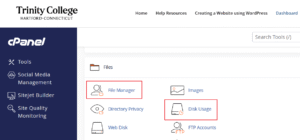
File Manager is a powerful tool, so use it carefully. Deleting or moving the wrong file can break your website.
You should check your files and storage if:
- Your site will not let you upload new images or documents
- WordPress updates are failing
- Your site seems unusually slow or unreliable
- You receive a warning that your account is running low on space
- You have uploaded large media files, backups, or project folders
- You have used the domain for more than one course or project
It is also a good habit to review your storage once or twice a semester, especially if your site includes media-heavy projects.
Your main website files are usually stored in a folder called public_html. If you have subdomains or multiple sites, they may have their own folders. Be careful with important folders Do not delete or move files unless you know what they are.
Be especially careful with folders and files such as:
- public_html
- wp-admin
- wp-content
- wp-includes
- .htaccess
- wp-config.php
- folders connected to specific applications or subdomains
These files may be required for WordPress or other web applications to work. If you delete, rename, or move them, your site may stop loading.
What you can usually clean up
Some files are safer to review and remove, especially if you know you no longer need them. These may include:
- Old .zip files
- Duplicate images or documents
- Old exported project files
- Unused PDFs or media files
- Backup files you have already downloaded elsewhere
- Test files from earlier projects
- Large files uploaded by mistake
Before deleting anything, ask yourself:
- Do I know what this file is?
- Is it being used on my site?
- Do I have another copy?
- Would deleting it affect a current course, assignment, or public project?
When in doubt, do not delete it. Ask for help first.
WordPress media files
If you use WordPress, many uploaded images and documents are stored in: wp-content/uploads
This folder is organized by year and month. You may see folders such as:
- 2023
- 2024
- 2025
- 2026
Be careful when deleting files from this folder. Even if an image or document looks old, it may still be used on a page or post. In most cases, it is safer to manage WordPress media from inside the WordPress dashboard by going to: Media > Library
From there, you can review uploaded files and delete items you are sure you no longer need such as large images, audio, and video Large media files can quickly use up your storage space. Before uploading files to your site, consider whether they need to be stored directly in your domain and consider using YouTube or Vimeo for videos. You can also use Kaltura for Trinity specific content.
For example:
- Compress large images before uploading them.
- Avoid uploading raw video files directly to WordPress.
- Use streaming or sharing services for large video files when appropriate.
- Remove duplicate versions of the same file. Start from the WordPress Media Gallery not the file manager for WordPress images
- Use descriptive filenames so you can identify files later. Clear filenames make your site easier to manage over time.
- A good filename is: hartford-map-project-final.jpg
- A less useful filename is: IMG_3847.jpg
Backups and storage
Backups are important, but they can also take up a lot of space. If you create a backup before making major changes, download a copy to your computer or approved storage location. Once you are sure you have a safe copy, you may not need to keep multiple old backup files inside your domain account. Be cautious, though. Do not delete your only backup.
File Manager is useful for keeping your domain organized, but it is not the best place to experiment. If you are unsure, ask before making changes.