Making sure your site loads securely using HTTPS
When you visit your site, check that the address begins with https:// and that your browser does not show a security warning. HTTPS means the connection between your visitor’s browser and your site is encrypted, which helps protect information as it travels across the web. It also prevents browsers from labeling your site as “Not Secure.”
Most Domain of One’s Own sites should use HTTPS automatically, but occasionally a site may still load with http:// or show a warning about an insecure connection. This can happen after changing settings, moving a site, adding new content, or installing WordPress plugins.
To check your site:
- Open your site in a private or incognito browser window.
- Look at the address bar and confirm that it begins with https://.
- Click through a few pages to make sure the secure connection remains active.
- Watch for browser warnings such as “Not Secure” or “Your connection is not private.”
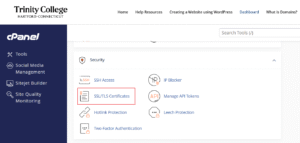
If your site is not loading via HTTPS first confirm the site has an SSL certificate. HTTPS uses an SSL certificate to encrypt the connection between your site and the visitor’s browser. To do this go to the SSL/TLS Certificates application in the cPanel. Here you can check the status of existing certificates and create new ones if necessary.
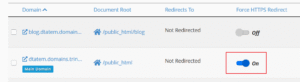
If your site already has a certificate the next step is to look at the Domains application in cPanel and confirm “Force HTTPS Redirect” is turned on.
If you are using WordPress and your site is still not using HTTPS you should check that WordPress knows its correct secure address:
- Log in to your WordPress dashboard.
- Go to Settings > General.
- Check these two fields:
- WordPress Address (URL)
- Site Address (URL)
- Make sure both begin with https://.
When WordPress may still need attention
Even after HTTPS is enabled, a WordPress site may still show a browser warning or a broken lock icon. This often happens when the page itself loads over HTTPS, but some images, scripts, stylesheets, or embedded content are still being loaded with old http:// links. This is sometimes called mixed content.
Common signs include:
- The site loads, but the browser still says Not Secure
- Images or formatting look broken
- Some pages are secure, but others are not
- Older embedded media or image links still use http://
In those cases, do not delete files or make major changes in File Manager. The fix may involve updating old links inside WordPress, checking the theme or plugins, or using a WordPress tool to replace old http:// references with https://. You will have to edit specific pages and posts where these links are located if you encounter this problem.