Metashape
Introduction to Metashape
Agisoft Metashape is a photogrammetry application that can be used to create detailed 3D models from photographs. By analyzing overlapping images of an object, artifact, or space, Metashape estimates camera positions, identifies shared visual points, and reconstructs a digital model that can be viewed, edited, and exported for other uses. Agisoft’s current beginner workflow for object-based modeling centers on adding photos, aligning them, building the model, texturing it, and exporting the result.
Photogrammetry is especially useful for creating digital representations of real-world objects for research, teaching, preservation, fabrication, and presentation. Depending on your project, Metashape can produce textured 3D models, point clouds, and other derived outputs from a well-planned set of photos. Agisoft’s documentation also notes that both the Professional and Standard editions support the basic 3D model reconstruction workflow, while some advanced reference-based tools such as markers, scale bars, and certain georeferencing features are limited to the Professional edition.
You can download and install a fully functional 30 day trial for Mac or Windows here: https://www.agisoft.com/downloads/installer/.
What You Can Make with Metashape
Metashape can be used to create:
- 3D models of artifacts and objects
- Digital documentation of physical materials
- Models for classroom demonstration and research
- Models for virtual exhibits, storytelling, and visualization
- Files that can be used in downstream editing, display, or fabrication workflows
Agisoft’s own support materials describe Metashape as a tool for generating 3D models and related spatial outputs from photographs, and its tutorial catalog reflects use cases spanning object modeling, surveying, documentation, and visualization.
To view some examples, see our collection on Sketchfab.
How Metashape Works
Metashape works by comparing a series of overlapping images and finding matching features across them. During processing, the software estimates where each camera was positioned, creates a tie point cloud from those matches, reconstructs geometry, and then projects image information back onto the surface to build a texture.
For beginners, the important thing to understand is that the quality of the final model depends just as much on the photo-taking process as it does on the software steps. Good image overlap, even lighting, clear focus, and full coverage of the subject are essential for successful reconstruction.
Before You Begin: Capturing Good Photos
A successful Metashape project starts before you ever open the software. The photographs you take are the raw material for the model, so careful image capture is critical.
Tips for taking photos
-
Take many photos from a range of angles (at least 2 different angles).
-
Make sure each image overlaps with the next (by about 70%).
-
Keep the entire object in focus.
-
Use soft, even lighting when possible (lightbox available).
-
Avoid glare, reflections, and deep shadows.
-
Try to fill the frame with the object rather than capturing too much empty background.
-
Make sure all areas of the object are visible in at least two photos.
Agisoft’s image capture guidance recommends more photos rather than too few, diffuse lighting instead of flash, and minimizing “blind zones” because Metashape can only reconstruct geometry that is visible from multiple camera positions.
If you plan to measure your model or establish scale, Agisoft also recommends placing markers or a ruler with a known distance in the scene. That capability is especially relevant when measurement accuracy matters.
Click here for a Capturing Photos for Metashape Quick Guide for taking photos with the lightbox and turn table.
Workflow: Creating a 3D Model in Metashape
Once you have your images, you can begin building your model in Metashape.
1. Add Photos
What this step does:
This brings your image set into the project and establishes the source data for everything that follows.
Start a new project and import the images you want to process. Photos are added through the Workflow menu. Drag and drop, use “Add images,” or a upload through a folder under the Workflow menu. Images captured from each angle should be added to their own chunks.

Estimate Image Quality (optional)
It is a good idea to check the quality of your images before you begin. Metashape will give a quality score to each image ranging from 0-1. If you have images of low quality (below .5 or so) you may want to either remove them if you can do without them or retake the images. If all your images are low quality it will reduce your likelihood of getting a high quality model in the end. To do this, right click on any image in the photos panel and choose Estimate Image Quality. You can choose to Apply to All Images, Selected Images or Entire Workspace. We recommend selecting Entire Workspace so you can check all images at once.
Detect Markers
If you used markers be sure to detect them first. Under the tools menu choose markers – detect markers.
2. Align Photos
What this step does:
In this step, Metashape identifies matching visual points across images, estimates camera positions, and generates a tie point cloud.Alignment is the foundation of the model. If the images do not align well, later steps will not produce a strong result.
Under the Workflow menu choose Batch Process to align all the images in each of our chunks. Batch process can also automatically save the project after each step, which will prevent you from losing work if the computer times out.
- Higher accuracy setting will take more processing time,
- For Key point limit the recommended range of 20,000 to 100,000, start with 40,000
- For Tie point limit the recommended range is 2,000 to 40,000, start with 10,000. Setting it to zero means unlimited. This may be useful for very large objects or if you want to refine your model as much as possible.
- Be sure to exclude stationary tie points when using this turntable method


3. Edit the Chunks
What this step does:
This helps you make sure Metashape focuses on the object or area you actually want to reconstruct, rather than wasting processing power on extra space or unwanted geometry.
Bounding Box
After alignment, Metashape automatically defines a reconstruction region, sometimes called the bounding box. Make sure the bounding box fits snuggly around your object and no parts are cut out. You should cut out any parts of the turn table or times used to prop up your object. Make sure to look all around your object when sizing. Do this for each chunk.

Build a Low-Quality Model and Meshes
Under the Workflow menu choose Batch Process, select Build Model and set the Depth maps quality and Face count to low. This will create a mesh.

Once the mesh is finished remove any stray pieces. We recommend using the Gradual Selection took under the Model menu. For criterion choose Connected component size and for Level enter 99. When this is run it should select everything EXCEPT your main model and you can click delete to remove them. Do this for each chunk. Save after each step.
Masks
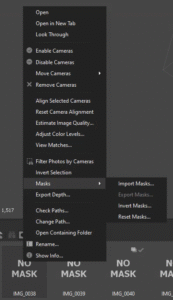
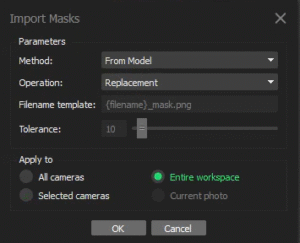
Right click on any photo and choose Masks – Import Masks.Confirm the method is from Model and if you choose the entire workspace option it will generate masks for all images at once. This step is very quick.
4. Align and Merge Chunks
What this step does:
This converts your aligned photo data into the actual 3D surface geometry of the object.
Align Chunks
The next step is to align the chunks to create a single model. Under the Workflow menu choose Align Chunks (similar to aligning the photos we did before). Make sure all your chunks are selected, the method is Point based and accuracy is high. Choose to apply masks to Key points. Click the show aligned chunks button to see the result.
Toggle the cameras on and off to tell if the alignment was successful. If allignment wasn’t successful try aligning different combinations of chunks.
Merge Chunks
From the Workflow menu choose Merge Chunks. Select the chunks you want to merge, leave the rest of the boxes unchecked. Once the chunks are merged you should see a new item in your workspace called “merged chunks.” Double click that to select it. Resize the region again. This time we don’t need to cut off the base and markers but we want to region to be as small as possible while still containing the object.
5. Build The High-Quality Model
What this step does:
Uses the chunks to create a full mesh of your object.
Go to the Workflow menu and choose Build Model. Set the desired quality.
- Low-quality is fine for online viewing, as the file size will be much smaller.
- Medium-quality may be fine for many models and is quite a bit faster than high quality.
- High-quality is best for 3D Printing.
6. Build Texture
What this step does:
Texture projects the original photographic detail onto the surface of the model so that it looks more realistic and readable.
Once the model geometry is complete, go to the Workflow menu and choose Build Texture. Texture atlas size in the range of roughly 4096 to 16384 pixels is often sufficient, depending on your project needs.
7. Export the Model
What this step does:
This creates a file you can use in other software, upload to a viewing platform, or prepare for fabrication or presentation.
When your model is complete, you can export it from the File menu. Different file types allow you to use the model for different things. Know your end use before exporting.
Common Challenges
The model is incomplete
This usually means some parts of the object were not photographed from enough angles or did not appear in enough overlapping images. Agisoft notes that geometry must be visible from at least two camera positions to be reconstructed.
The model includes background noise
Unwanted background geometry can result from busy surroundings or extra objects in the frame. Agisoft recommends masking irrelevant background elements when needed before processing.
The photos do not align well
Poor overlap, motion blur, repetitive texture, reflective surfaces, or inconsistent image quality can all cause weak alignment. Agisoft’s help materials emphasize overlap, lighting, and clear capture as the first places to troubleshoot.
Glossary
Agisoft Metashape
A software application used to generate 3D models, point clouds, and other spatial data from overlapping photographs.
Align Photos
A processing step where Metashape analyzes images, finds matching points between them, and estimates the position and orientation of each camera.
Blind Zones
Areas of an object that were not captured clearly in enough photos, often resulting in missing or incomplete geometry.
Bounding Box (Region)
A box that defines the area Metashape will use to build the model. Adjusting it helps focus processing on the desired object.
Build Model
A processing step that generates the 3D geometry (mesh) of the object using image data and depth calculations.
Control Points / Markers
Reference points placed in images that can be used to improve alignment accuracy or scale a model to real-world measurements.
Dense Point Cloud
A more detailed collection of points generated after alignment that represents the surface of the object with greater accuracy.
Depth Maps
Intermediate data used by Metashape to estimate the distance from the camera to surfaces in each image, helping to generate accurate 3D geometry.
Diffuse Lighting
Soft, even lighting that reduces shadows and glare, helping Metashape detect surface details more accurately.
Masking
The process of hiding or removing parts of an image (such as the background) so they are ignored during processing.
Mesh
A 3D surface created from point cloud data, made up of connected polygons (usually triangles) that define the shape of the object.
Model Export
The process of saving a completed 3D model in a file format (such as OBJ, STL, or FBX) for use in other software.
Overlap
The amount of shared visual information between photos. High overlap (images capturing the same areas) is essential for accurate reconstruction.
Photogrammetry
The process of creating 3D models from photographs by identifying and matching features across multiple images.
Point Cloud
A collection of points in 3D space representing the surface of an object. Includes both sparse (tie points) and dense point clouds.
Preselection (Generic / Reference)
Settings used during photo alignment to speed up processing by limiting which images are compared to each other.
Project / Chunk
A working container in Metashape that holds a set of images and the resulting model data. Large projects can include multiple chunks.
Scale Bar
A known distance (often created between two markers) used to accurately scale a 3D model.
Texture
The visual surface detail of a 3D model, created by projecting the original photographs onto the mesh.
Tie Points (Sparse Point Cloud)
A preliminary set of points created during photo alignment that represent shared features detected across images. These points form the foundation of the model.