Logging In To Zoom
Logging In To the Web Version of Zoom
Scroll down for instructions on logging in to the desktop version. To use login to zoom via the web, visit trincoll.zoom.us and select the blue sign in button.

From here, log in with your TC username followed by @trincoll.edu (your ‘scoped id’).

This will allow you to access the Zoom web client.
Using Zoom from the Desktop
When logging tin the desktop app select the SSO option as shown below. If asked for a domain enter “trincoll”
To download the Zoom desktop client, click Host a Meeting in the top right corner of the Zoom web client portal.

You can also download the desktop client directly from the Zoom Download Center.
After downloading the Zoom desktop client, double click the Zoom desktop icon, which looks like this:

Next, to log in with Trinity Credentials, you will need to select the SSO sign-in option.

Type “trincoll” into the Company Domain field on the next screen.
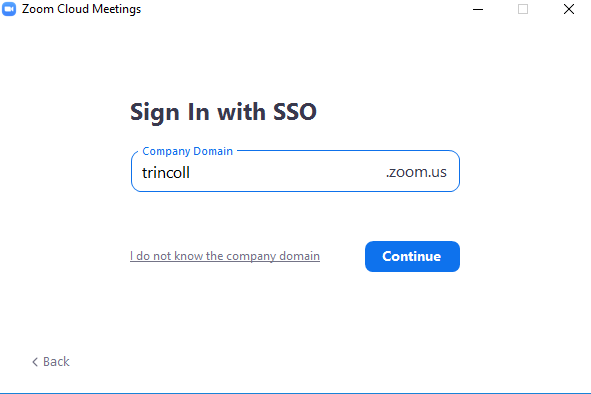
Now log in with your TC username followed by @trincoll.edu (your ‘scoped id’).
Confirm You Are Logged Into The Trinity Zoom License
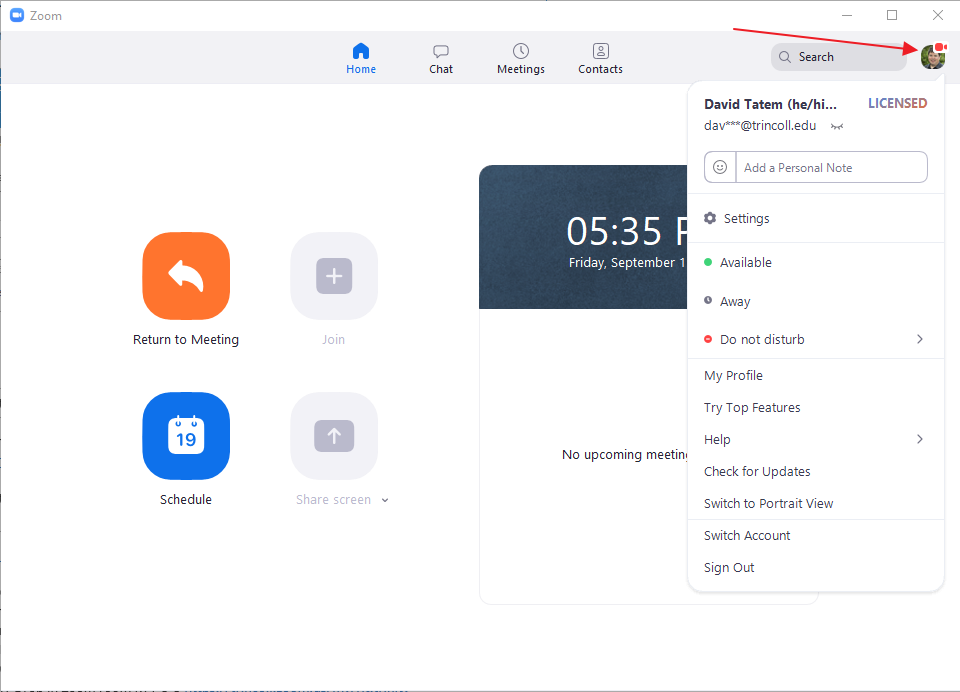
Open the Zoom Client app.
If you are logged in you will see a round icon at the top right. Click that icon as show by the arrow below.