Back to Technology, Data & Innovation
Sign In with a Passkey
A passkey is a passwordless encryption technology that is set up and stored securely on your device. When you authenticate using your fingerprint, face, or PIN, a one-time passkey is generated and used to access your Trinity account.
Instructions on how to setup passkey
Prerequisites
Prior to setting up your account, you must have the following:
- The user credentials which include a username and a Temporary Access Pass (TAP) – a one-time code provided with your username.
- A phone capable of running the Microsoft Authenticator and using passkeys AND/OR a YubiKey
- Android version 14 and later and iOS version 17 and later are required for Passkey use
- Security keys (YubiKey) may be purchased by users at any time. If a security key is required for your role and you are unable to use Microsoft Authenticator for passkey authentication, the College may provide one following review and approval. Please contact the Help Desk ([email protected]) for assistance.
Log in and add the account to your MS Authenticator
Prior to setting up the Passkey, you must set up authentication to your MS account.
- Open a normal browser window (not Incognito/InPrivate) and navigate to https://aka.ms/mysecurityinfo.
- Sign in to the Microsoft Security Info page. If provided, use your Temporary Access Pass (aka TAP)
- You will then be prompted to install Microsoft Authenticator. If you have not done so already, please do so via the instructions on this page.
- Follow the instructions to add your MS account to the Microsoft Authenticator App.
Note: Please scan the QR code with the Microsoft Authenticator App (not the camera app). When you open the app, there will be a little blue button somewhere on the screen (usually bottom right) that will open the camera and allow you to scan the QR code.
Configuring a Passkey
Mobile Devices
- Open the MS Authenticator app and select the account you’re trying to setup passkey. Once your account is open, you should see a screen with options to set up the Passkey
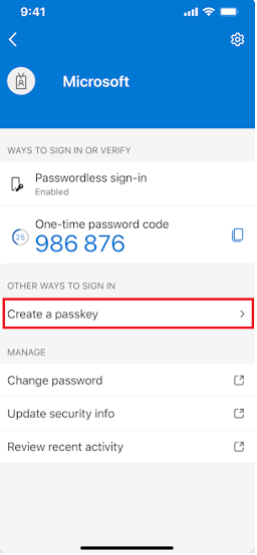
- Select “Create a passkey” option, then follow the instructions provided in the Authenticator app
Yubikey
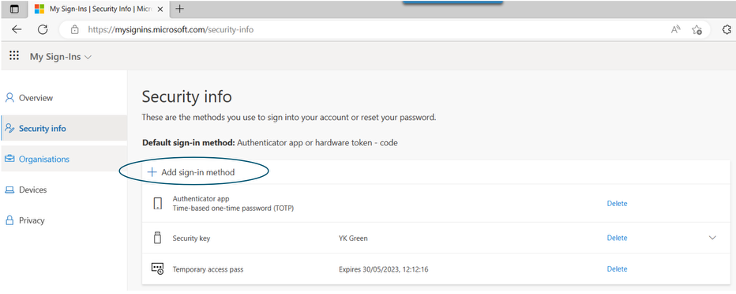
- From the Security Info Page, Select “+ Add sign-in method”
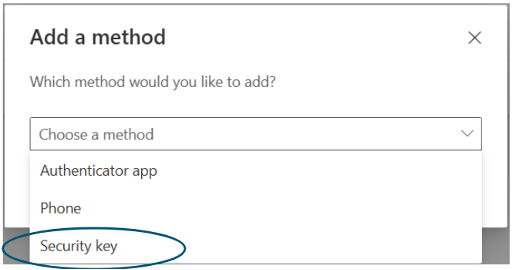
- Select the option Security Key, and then select Add
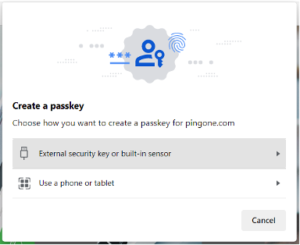
- If your browser displays a QR code or prompts you to register a passkey:
- Select Try another way (or Back / Use a different passkey).
- Choose External security key or built-in sensor.
- Touch your YubiKey when prompted.
- Approve any Windows Security prompts.
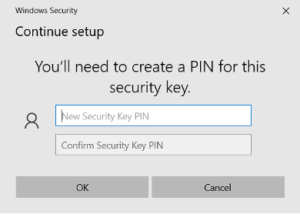
- Follow the prompts to set the key up. If you’ve never used the key before, you will need to set up a PIN for it. Please make this memorable. It can be all numeric if you’d like.
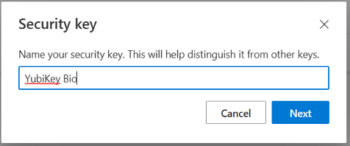
- You will be prompted to give it a name. It can be anything you would like.
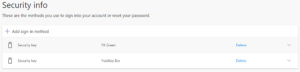
- You should now be presented with the Security Info page. It should list all your methods of MFA, including the YubiKey. If not, please contact the desk for further assistance