Connecting Macmillan Achieve to your Moodle Course
Connecting Macmillan Achieve to Moodle allows students to open Achieve resources directly from your Moodle course. You can also add individual Achieve assignments to Moodle and have students’ scores sync with the Moodle gradebook.
These instructions use Macmillan’s LTI Advantage (LTI 1.3) integration.
Before You Begin
Create and prepare your course in Achieve before connecting it to Moodle. Each Moodle course should be connected to its own unique Achieve course.
In your Achieve course settings:
- Locate the LMS Integration section.
- Select Yes to indicate that you will integrate the course with an LMS.
- Select Moodle from the LMS menu.
- Save your changes.
You can find additional details in Macmillan’s official Moodle integration guide.
Step 1: Enable the Macmillan Tools
In your Moodle course:
- Select More from the course navigation menu.
- Select LTI External tools.
- Turn on the following tool:
- Macmillan Learning Tools
Step 2: Add Macmillan Course Tools
The Macmillan Course Tools link is used to establish and manage the connection between your Moodle and Achieve courses.
- Return to the main page of your Moodle course.
- Turn on Edit mode.
- Select Add an activity or resource in the section where you would like the link to appear.
- Select Macmillan Learning Tools.
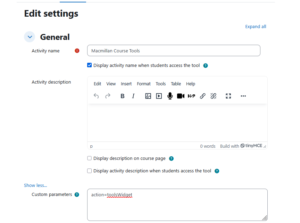
- Enter Macmillan Course Tools as the activity name.
- Under “Show More” enter into the custom parameter action=toolsWidget
- Select Save and return to course.
Do not hide the Macmillan Course Tools activity from students. Students see only the student-specific options they need to manage their connection to Achieve; they cannot access the instructor tools or change the course integration.
Step 3: Connect Your Achieve Course
- Open the new Macmillan Course Tools activity in Moodle.
- Select Connect with Achieve.
- If prompted, enter your name and the email address associated with your Achieve account.
- On the Associate Courses page, locate the appropriate Achieve course and select Associate.
- Select Yes, Associate This Course to confirm.
- Select OK to return to Moodle.
Your Moodle course and Achieve course are now connected.
Registering Students
Students should access and register for Achieve through the links in your Moodle course.
Macmillan specifically recommends that students follow its Moodle registration instructions. Students should not follow separate registration directions printed on an access card or register independently through the Achieve website. Registering outside Moodle may prevent their Achieve grades from syncing correctly.
Important Tips
- Use a unique Achieve course for each Moodle course.
- Do not hide the Macmillan Learning Tools activity.
- Assign activities and give them due dates in Achieve before adding them to Moodle.
- Ask students to access Achieve through Moodle rather than navigating directly to the Achieve website.
- When preparing a new semester, follow Macmillan’s instructions for copying a Moodle course integrated with Achieve rather than reconnecting the copied course to the previous semester’s Achieve course.
Need Assistance?
If you cannot find the Macmillan tools, do not see your Achieve course on the association page, or experience problems with grade synchronization, contact Academic Technology for assistance. You may also consult Macmillan’s Moodle integration resources.